
Workspaces and tabs
Organize tabs and windows; save and restore your workspace.
On this page
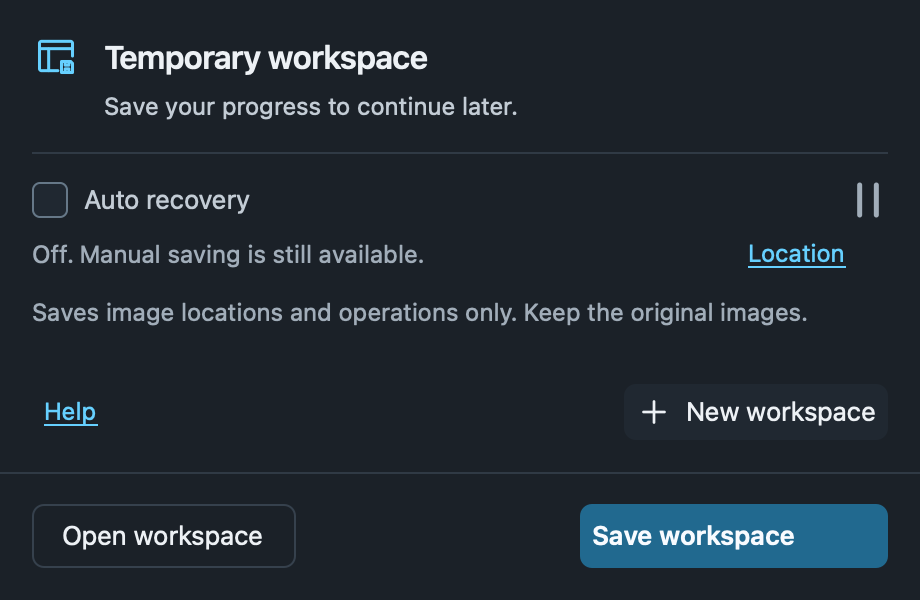
Open and save
Save for the first time: choose Workspace → Save workspace at the lower left, then choose a name and location. Use Save changes to update that file, or Save as to keep another copy. You can start importing without creating a workspace first.
Continue later: choose Open workspace, or use Continue your work on the empty home screen to open one of the five recent workspaces. Removing a recent entry does not delete the file.
What is restored: tabs from all windows, image references, display settings, completed measurements and annotations, segmentation, VOIs, cropping, and selected tools. Tabs that were open when you saved return to the main window. Choose Reopen closed tab to retrieve results from a tab that was closed. Separate window positions and groups are not restored.
What does not run automatically: playback, recalculation, export, or deletion. Unfinished drags and undo history are not restored.
Start new work: choose New workspace on the home screen or in Workspace at the lower left, or press Ctrl+N (Windows) / ⌘N (macOS). If there are unsaved changes, choose Save and create, Discard and create, or Cancel. A successful save is required before switching; cancelling or a failed save keeps your current work. Creating a workspace closes old tabs from all windows and returns to the blank main window. Saved workspace files and source images are kept.
Auto recovery
Enabled by default, it backs up changes every 30 seconds. Disabling it persists after restarting and does not affect manual saving. A green check means the backup is current. Hover over the status icon for its time or status. Hover over or click Backup location to view the full path. Choose Copy path, or Open location to dismiss the card and open the containing folder. Clicking Recover or Discard closes the workspace window. It reopens if recovery fails or source files need locating.
Exit confirmation
When the current workspace has changes, exiting asks Save changes to the current workspace? Choose Save changes, Don’t save, or Cancel. A temporary workspace first asks for a file location. The app exits only after a successful save. Discarding keeps the last saved file; cancelling returns to the app. Saving includes retained results from closed tabs. Remembering your choice skips future prompts; change it under Settings → Workspace → Exit confirmation.
Images have moved
Use Locate… to select the original file, folder or archive, or restore available series only. Cancel restore stops restoration.
Important
Keep original images
Workspace files contain no image pixels. Keep local PACS downloads too. Recovery backups protect against unexpected exits and do not replace manual saving. Drafts and undo history are not saved.
Arrange tabs
In the main window, select a series and press D for 2D, X for MPR, T for 3D, Y for CPR, O for Montage, U for 4D, or I for DICOM tags. With multiple selections, only the active series opens; an already open view of the same series and type is activated with its reading state preserved. In a series context menu, the same keys target the right-clicked series, with current bindings shown on the right. Only supported views can open. Change or clear these bindings in Settings → Mouse & keyboard. They are inactive while typing, in other popups, or during dragging. If a custom binding overlaps with the active secondary menu, that menu takes priority.
Right-click a tab to close it, other tabs, tabs to its right or all tabs in that window. Drag with the left button to reorder; hold near either edge to scroll. Middle-click closes the target tab.
Compare views
Drop a tab outside the application windows, or choose Open in separate window. The new window keeps its tabs and tools; measurements, crops and undo history move with the tab. Drop onto another tab bar to merge. Press Esc to cancel a drag.
Close or return
Opening a view from the series list activates an existing tab of the same series and type, preserving measurements, slice and display state. If it is in a separate window, that window is activated. Different view types remain independent. Opening from the series after closing the tab creates a new session; use Reopen closed tab to recover the old state.
To recover an accidentally closed tab, right-click a tab or empty space in the tab strip and choose Reopen closed tab. The strip remains available after closing all tabs; Workspace and the home screen do not duplicate this action. The shortcut is Ctrl+Shift+T (Windows) or ⇧⌘T (macOS). Repeat to reopen tabs in reverse order of closure.
This workspace session remembers the last 20 closed reading tabs that finished loading and had no completed edits. Utility pages such as Settings and the manual, and tabs closed by cancelling a load, are excluded. Workspace files and recovery copies retain tabs with completed measurements, annotations, VOIs, segmentation, analysis or 3D edits. You can reopen those tabs after loading the workspace.
Unsaved changes are handled when exiting, opening another workspace or creating a new one. Closing a separate window hides its tabs; Show main window returns to the main window. Closing the last window uses the workspace save confirmation.
Identify studies and series
Image tabs use two lines: the original series description above, with the patient name, study date and series number below. Long text is visually elided only; hover to read the complete source information. DICOM names are not rewritten. Matching labels from different sources receive a discriminator; missing fields are omitted from the tab, with missing or invalid dates explained in the tooltip without guessing a study time.
The image corner overlay can show the study date. Hiding sensitive information also hides the corresponding new tab labels and tooltips.