
Quick start
First use: open images, browse slices, choose a tool, and save your work.
On this page
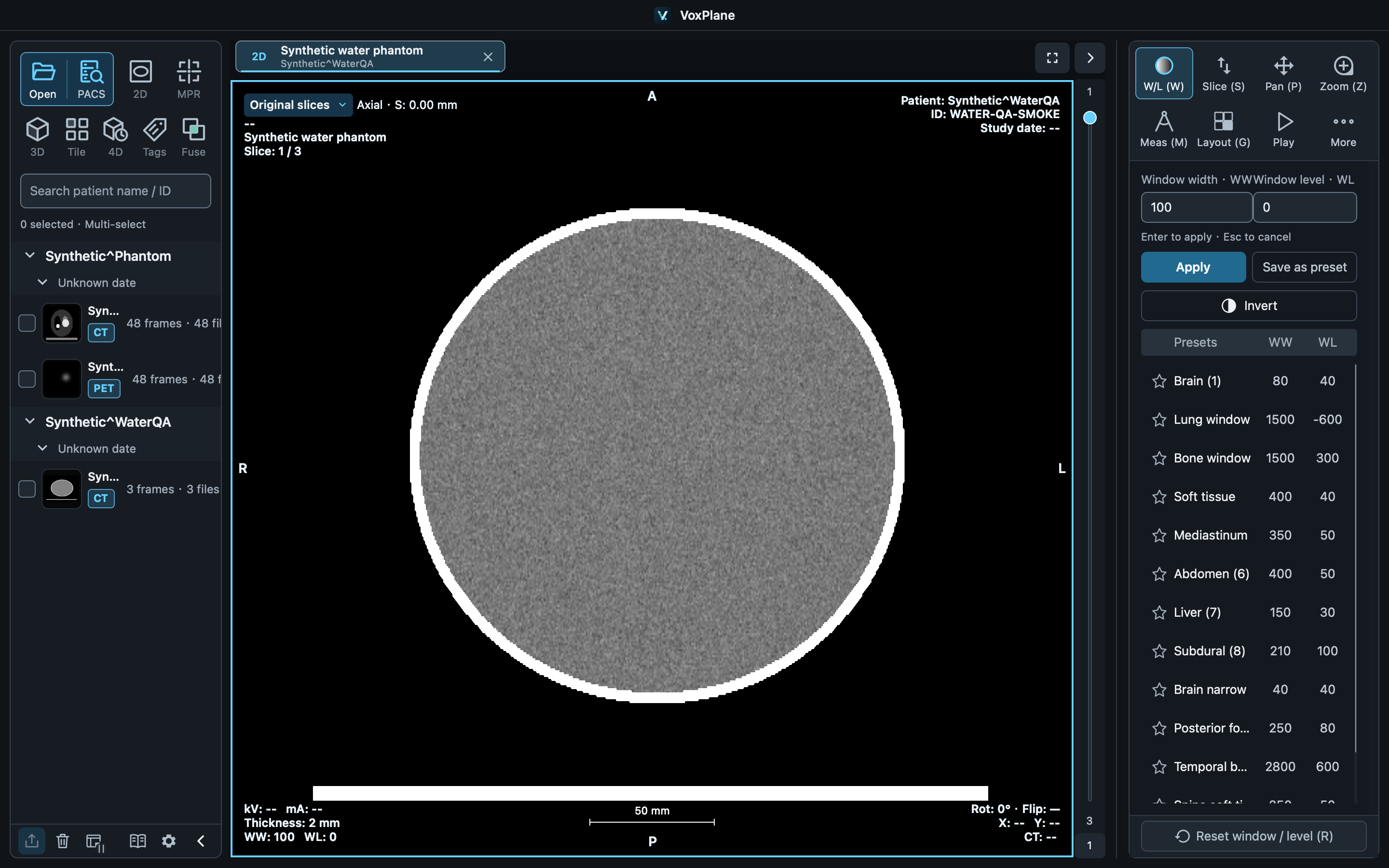
1. Open images
Click Open images on the home screen or left sidebar. Select a folder, files, or an archive containing DICOM images, then click Open selected. You can also drag them into the window.
After import, the left sidebar lists series (groups of images from a scan), grouped by patient and study. Start with one series.
2. Double-click a series
Double-click a series in the left sidebar to open its 2D slice view. Move the pointer over the image and use the scroll wheel to browse slices.
For views from several directions, select the series and click MPR. For a volume view, click 3D. If a button is unavailable, hover over it to see why.
3. Choose a tool
Click the image area (viewport) you want to work on, then choose a tool on the right. The tool acts on the selected viewport.
By default, drag with the left button to adjust window width and level (image contrast and brightness), drag with the right button to zoom, and scroll to browse slices. Selecting a measurement or pan tool changes what the left button does. Hover over a button for its name and shortcut.
4. Save and continue later
After measuring or annotating, click Workspace → Save workspace at the lower left and choose a location. Use Ctrl+S (Windows) / ⌘S (macOS) to save later changes. Choose Open workspace next time to continue.
To share results, use Export on the right for a PNG image or measurement CSV/PDF. Exported files serve a different purpose from an editable workspace.
Important
Keep the source images
A workspace does not contain the original image pixels. Keep the source DICOM files or archives. If you move them, you will need to locate them again when reopening the workspace. Recovery copies help after an unexpected exit; they do not replace saving your work.
Common terms
2D: browse individual slices. MPR (multiplanar reconstruction): view axial, coronal, and sagittal planes together. 3D: volume rendering.
ROI (region of interest): a measurement region on one slice. VOI (volume of interest): a region with depth. Segmentation: marking a structure as a region that you can manage separately.