
Editing, copying and undo
Select completed objects to edit or copy them.
On this page
Complete and edit
Release: selected and complete, using the completed style with handles. Click again: selected for editing, using the draft style. Clicking alone does not change geometry. Release after dragging to finish again.
Adjust an object
Select an outline, label, card or ROI interior. Drag handles to reshape; drag an outline or interior to move the shape. Cards and shapes move independently by default. Enable linked movement and adjust font size and background transparency under Settings → Measurement → Metrics & cards, with a live preview. Press Esc to cancel an edit.
Copy and paste
Copy and paste a selected measurement or annotation with ⌘C / ⌘V (Windows/Linux: Ctrl+C / Ctrl+V). These keys also work while an operation-panel button has focus. Text fields keep normal text clipboard behavior; popups suppress image-object shortcuts. The independent copy is offset by 10 pixels. Across slices it retains pixel coordinates and recalculates with target spacing and pixels. Unfinished objects cannot be copied. QA circles do not use these clipboard shortcuts.
Undo, delete and save
Focus the image to undo, redo or delete selected objects. Shortcuts inside text fields edit text only. Save your workspace before closing, or export PNG, CSV or PDF. Original DICOM files do not store measurement objects.
If undo history cannot be recorded, for example because memory is low, a message appears at the bottom of the window. Current edits and existing history are retained; undo and redo are temporarily unavailable. Free resources and select Retry recording. Multiple edits made before a successful retry are combined into one step.
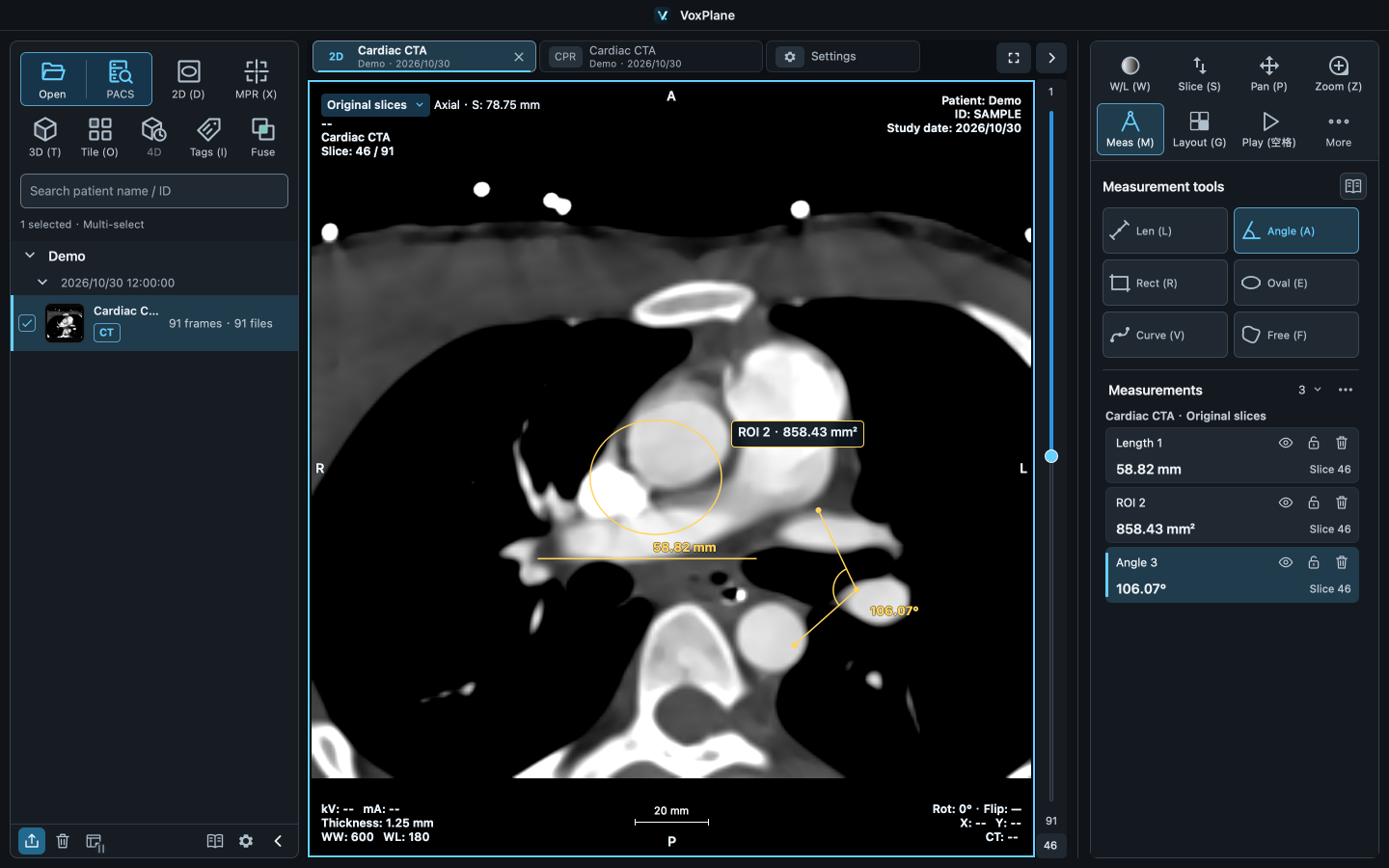
Measurement list
Measure → Measurements lists completed measurements across every view, slice and phase of the current tab. Select an entry to return to its source. Rename, show/hide, lock or delete entries. Locking protects both geometry and metric cards; copies are independent and unlocked. Hidden measurements remain in reports. Names, visibility and locks support undo and workspace saving.