
Local import and series management
Select files, folders and archives in one step.
On this page
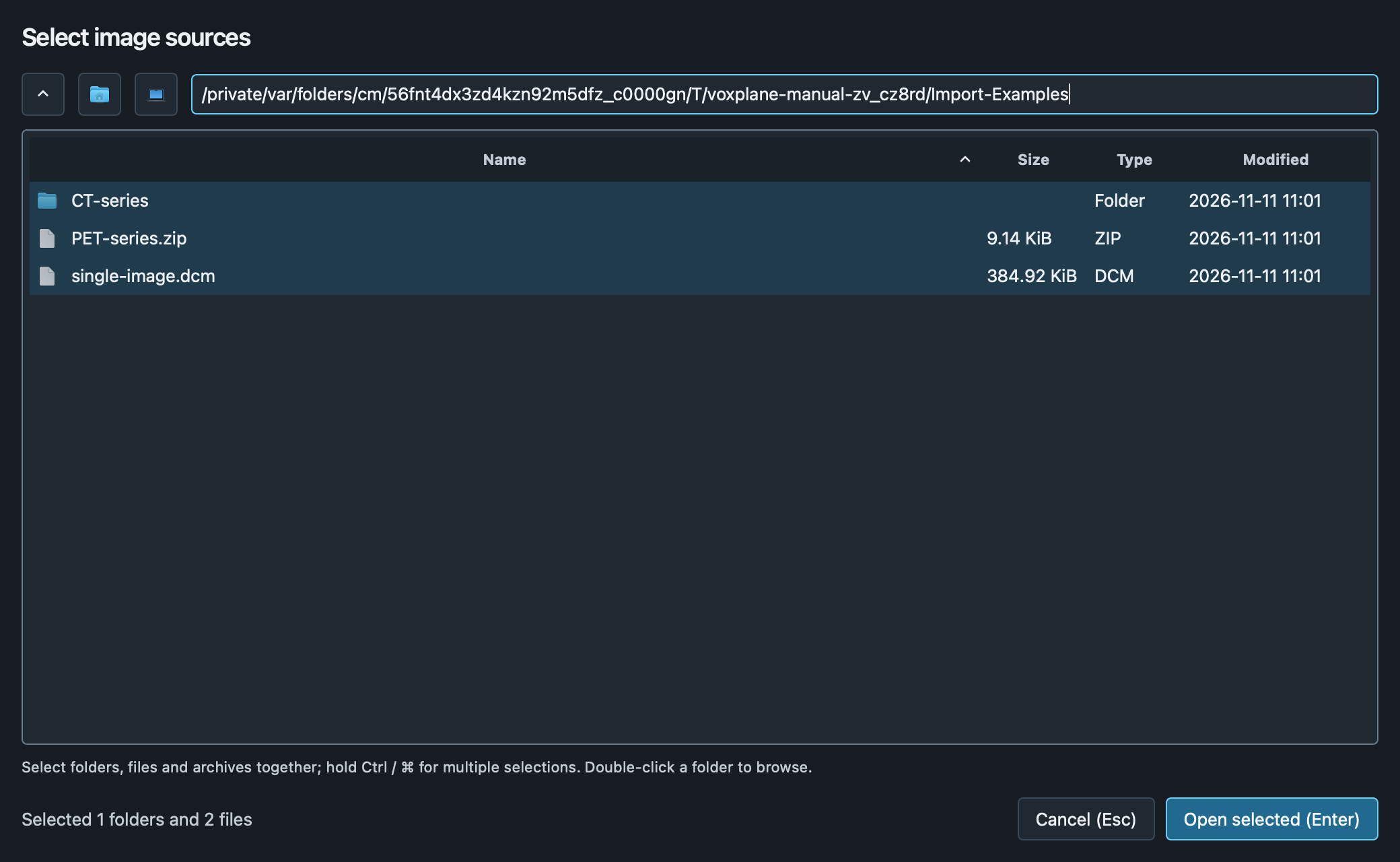
Select sources
Click Open images, hold Ctrl / ⌘ to select multiple items, then Open selected. Double-click folders to browse; with no selection, open the current folder. In the file list, press Enter to import the selection. After editing the directory, press Enter to navigate and press it again after loading to confirm. Esc cancels. Files need not have a .dcm extension. You can also confirm a typed path directly; it is validated before import. Invalid paths never fall back to the previous directory. The first import selects the first series in sidebar order. Choose Open selected series on the home page to view it. Import more images preserves your existing selection.
Successful image imports remember the latest 10 file, directory or archive paths and the last successful browsing location. Favorite folders and Recent share the left sidebar, with the file browser on the right. Use the star beside the path to save the current folder. Click a record to open it, or select it with the arrow keys and press Enter. Cancelled, failed and empty sources are not recorded. Use the trailing clear button on the selected record, right-click Remove this entry, or press Delete / Backspace to remove one record. Clear all removes recent history. Image files, favorites and the current browsing directory are preserved; unavailable paths can also be removed.
Favorite folders
Open a folder in the image picker and use the star beside the path to save it. The Favorite folders list on the left switches locations; then choose Open current folder or select files and choose Open selected. Scroll within the list to reach more favorites.
The ⋯ button beside the heading opens Manage favorites, where you can rename, reorder by dragging, remove, or replace paths. Esc cancels a drag. Favorites persist after restart. The × at the end of the current folder row removes the favorite without deleting the folder or changing selected files. If a folder moved or a drive disconnected, update its path or reconnect it.
Supported archives
ZIP, RAR4/5, 7z and TAR (including TGZ, TBZ2 and TXZ), plus single-file GZ, BZ2 and XZ. Unicode paths and solid RAR are supported without WinRAR. Decrypt encrypted archives and combine multipart archives before importing.
Progress and large imports
A quick, successful import adds images directly to the sidebar. Longer imports show progress and can be cancelled. If all images are already listed, a brief notice appears. Results stay open for partial duplicates, skipped files, failures or cancellation after some images were loaded. After a failure, choose Retry or Select again. Import up to 100,000 files per batch.
Manage series
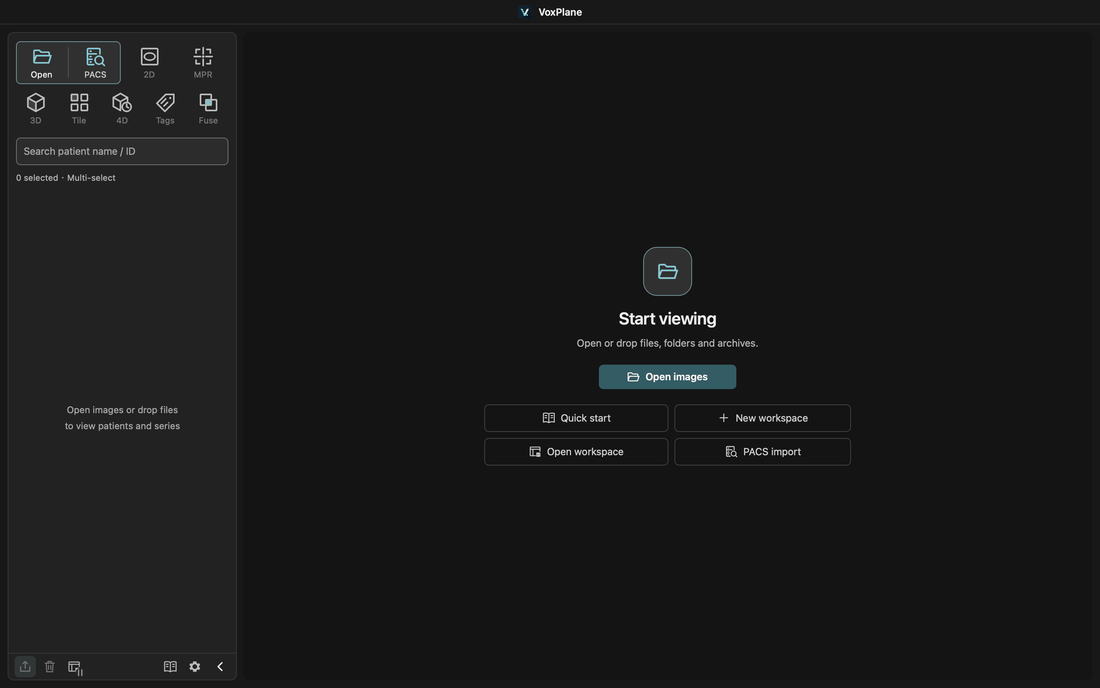
Search by patient name or ID. Multi-select, double-click to open, or use the context menu, including on collapsed thumbnails. Repeated imports merge. Removing a series does not delete original files. Larger arrows expand patient and study groups. A highlighted CT / MR / PET badge identifies each series. The collapsed left rail retains Export, Clear, Workspace, Manual and Settings.
Extraction limits
Limits: 8 GiB per archived file, 32 GiB total extraction, 3 nesting levels and 512 MiB RAR dictionary. Extract larger archives first and import in batches. Canceling keeps loaded series. Extraction caches are cleared on exit; sources stay unchanged.