
CT water phantom QA
Separate water CT number, uniformity, water noise, and external air sampling; edit circles and export reports.
On this page
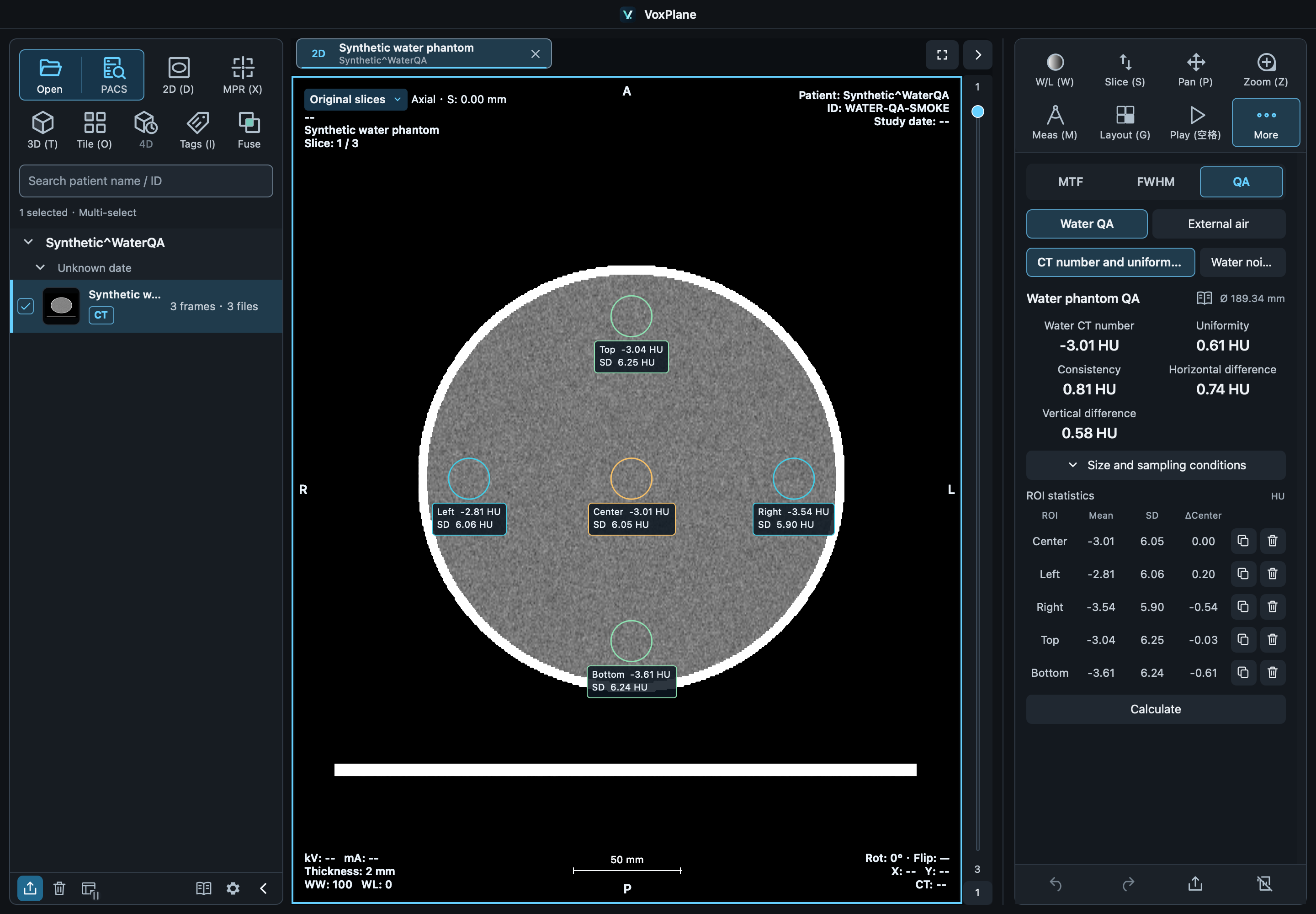
1. Detect the phantom
Open Analysis → QA on a 2D CT slice. A complete, near-circular water phantom produces five small ROIs and an independent large noise ROI. Switch CT / uniformity and Water noise without losing geometry or results. Only the active group is shown and editable. Without a detected phantom, ordinary circular sampling remains available without water summaries.
2. Adjust regions
Initial small-ROI diameter is 10% of phantom diameter, noise diameter 40%, and peripheral edge clearance 10 mm. Expand sampling conditions to adjust in 0.1 mm increments; limits depend on this group, remaining circles and actual boundaries. Diameter changes preserve positions and deletions; clearance moves only remaining peripheral small ROIs. Click a circle to show four resize handles. Drag a handle to resize that circle, or drag the circle to move it. Release to calculate and commit; Esc cancels. Different groups may overlap.
3. Read metrics
Water CT: small central ROI mean.
Noise SD: independent large ROI population SD. Noise %: SD / 1000 × 100%.
Uniformity: largest absolute difference between a peripheral and central small ROI mean.
Consistency: range of five small-ROI means, not repeatability.
Horizontal / vertical differences: absolute left/right and top/bottom mean differences. Deleting the small center does not affect large-ROI noise.
4. Read the table
Mean, SD, Δcenter are in HU; Δcenter applies only to CT / uniformity. Unsupported summaries are hidden. Small and air ROIs may be copied/deleted; copies do not enter fixed-position summaries. Opening External air on a slice first attempts to place one reliable air ROI. If no suitable location is found, choose Add then click valid image pixels outside the phantom; Esc cancels. A deleted circle is not recreated automatically. Air is independent of water summaries and noise normalization. ROIs cannot include invalid padding.
Reset and troubleshoot
Slice changes and workspaces retain each group’s ROIs and results. Calculate keeps the layout and allows retry after failure; Regenerate current group ROIs replaces only the current group. Clear removes all QA in this viewport and stops analysis. Each ROI needs at least 16 valid pixels; invalid edits preserve the last result. Historical noise values remain unchanged until explicit recalculation uses the independent large circle.
Important
Report and interpretation
The fixed footer has one row of Undo, Redo, Export and Clear icons. Hover for details; undo/redo use standard system shortcuts. Export QA report (PDF) includes the image/ROI screenshot, statistics and sampling geometry. Water reports include CT / uniformity and water noise; air reports include only air ROIs. Titles and default filenames identify the category, and filenames include the slice number. No software name appears by default; set an optional name under Settings → Export → QA report, or leave it blank. Identifying corner text and edit handles are hidden. Initial sampling follows WS 519—2019 §5.6. Results describe this slice and do not automatically determine acceptance.
Save QA results
Workspaces retain each slice’s ROIs and completed results. Reopening preserves historical values. Moving or resizing a circle calculates automatically on release; size inputs also recalculate. Calculate remains available to retry failures or recalculate the current geometry. While calculating, circle and table positions remain stable and old values are shown as dashes. Failures show a reason; switching groups does not hide it. Invalid source geometry is not reused, and failed calculations do not overwrite the last successful record.
Use Export report in the footer to create a PDF with the current image, sampling conditions, and ROI tables. Water and external-air reports have distinct titles and filenames. Export freezes the completed result at the time of the click. No software signature is added by default; optionally enter Report software name in Settings → Export, or leave it blank. Reports do not automatically assess acceptance.
Undo and redo
Moving, copying, deleting or regenerating circles, successful parameter changes and resetting QA can be reversed with the QA Undo / Redo buttons. Use Ctrl+Z / ⌘Z to undo and Ctrl+Y / ⇧⌘Z to redo. A completed drag is one step; slice navigation and windowing add no steps. QA and measurement edits in the same tab follow their shared operation order. Workspaces save results, not undo history.