
Local import
Select files, folders, and archives together, or drag them into the window.

Import CT, MR, and PET studies, then view, reconstruct, fuse, and analyze them in one workspace.
Local AI segmentation · TotalSegmentator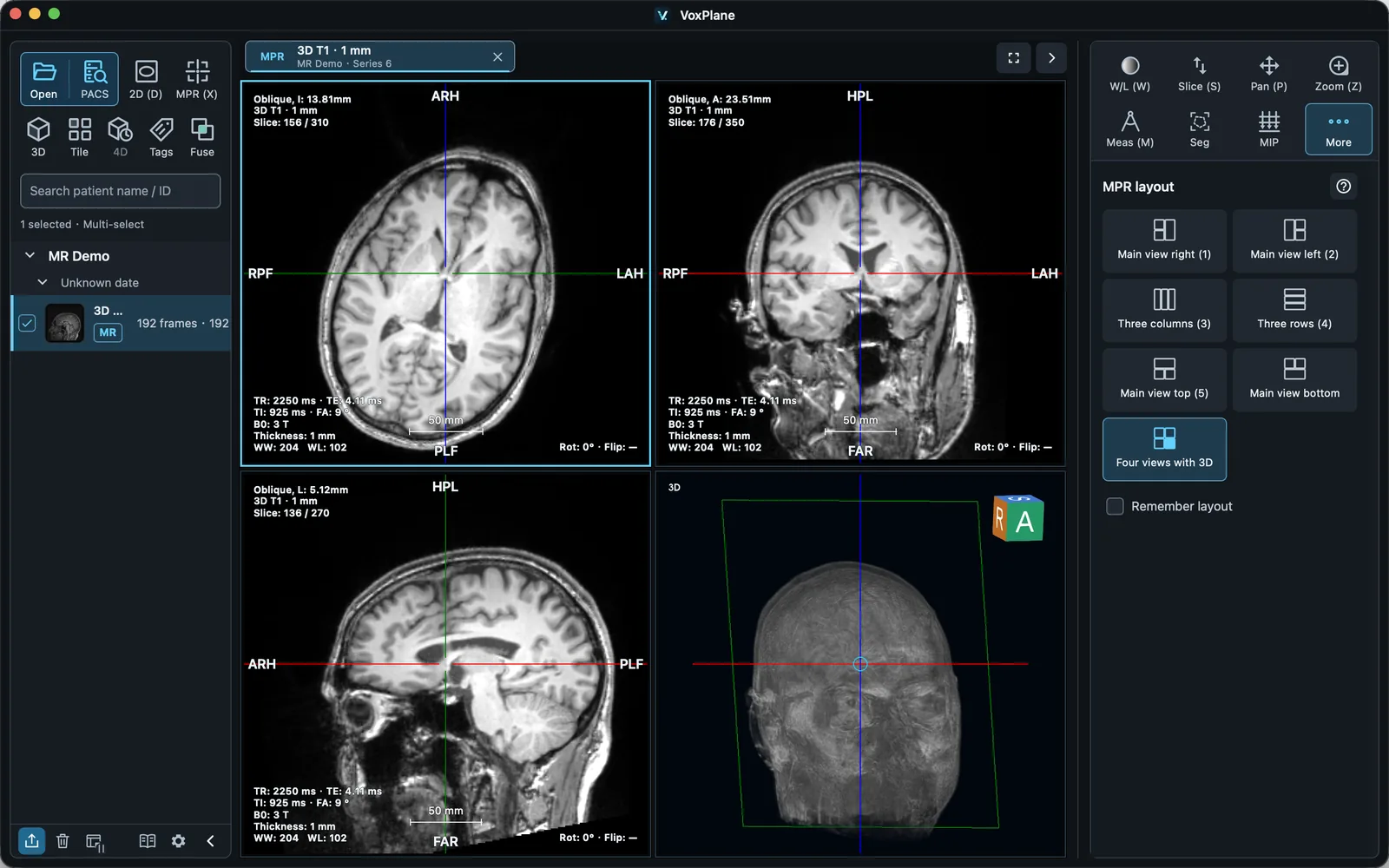
Bring images in, then pick up your work where you left off.
Select files, folders, and archives together, or drag them into the window.
Use DICOMweb or traditional DICOM (DIMSE) to find studies and import selected series.

Save tabs, measurements and analysis, then open the workspace to continue. Undo an accidental tab closure from the tab bar. Keep the original image files.

Choose the server protocol, find a study, select series and import them. DIMSE uses C-ECHO to test the connection, C-FIND to query and C-MOVE for retrieval. Ask the administrator to register your receiver AE, IP and port. Import a small series after testing to verify the return route.


Connect a separately installed TotalSegmentator environment, select organs in CT MPR / 4D, and segment the current phase in fast mode. Refine, undo, and save results in a workspace. Configure the environment and models under Settings → AI.

Requires a separate TotalSegmentator environment and CT fast model. Review and refine automatic results.
Setup and workflow guideRead original slices and compare linked series. Explore spatial structures with MPR, manual CPR paths, and volume rendering, or play multi-phase CT in sync. Common color DICOM also supports 2D viewing and multi-frame playback.


Trace a path on CT or MR images and enter a distance in mm to locate a cross-section. Press V to switch between references and results, mark a centerline interval, or inspect sampling guides. Select a saved measurement to return to its original plane. Edit or undo path changes and save them in a workspace. Physical measurements use reference planes and cross-sections.

See linked CT, PET, fused, and MIP views, adjust blending, and perform manual rigid registration when needed.

Copy and paste selected measurements or annotations; manage and locate length, angle, curve, and ROI measurements in a list, then export PDF reports with matching reference images. Refine segments with paint, erase, and connected-region tools; adjust outlines and fill opacity. Use thresholding and VOI analysis, exchange segments with Slicer through NRRD or DICOM SEG, and export DICOM SR.


Choose one of six view categories, drag icons to reorder or move them into More, and save the arrangement for future sessions. Comparison modes and image types retain independent configurations. Favorite window presets appear first and their list scrolls independently. Use the tab-bar maximize button or F12 to hide both sidebars and focus on the images.


Separate water CT number, uniformity, noise, and external-air groups. Move or resize circles, undo edits, calculate automatically, and retry failures. Export images and tables as PDF with optional branding. Save point-source MTF, ramp FWHM, and analysis records in workspaces.


Follow the system appearance or choose a fixed dark, neutral gray, or light theme. Customize interface size, mouse bindings, and tool shortcuts. Corner overlays use a global default with viewport overrides; a square viewport can resize the application window. Preferences persist after restart.


Available for macOS Apple Silicon and Windows. Version 2.5.0 and earlier need a one-time manual installation; settings and workspaces are preserved.

Apple Silicon · v2.6.0
For Apple silicon (M-series), not Intel Macs. Open the DMG, then drag VoxPlane into Applications.

x64 · v2.6.0
Choose the installer for everyday use. The portable EXE runs without installation. Both require 64-bit Windows.