Settings and defaults
Open Settings at the bottom left, then search or choose a category.
On this page
Numeric input and updates
Independent numeric fields commit valid values on Enter or focus loss. Esc cancels editing and restores the current value; invalid input reverts when submitted. Sliders, switches and choices apply immediately. Settings save automatically; interface size applies after restarting.
Edit CT window width/level, scalar display minimum/maximum, or PET registration parameters as a group, then click Apply or press Enter to submit the whole group. Focus loss does not submit these fields; Esc cancels the group draft. Changing the target or leaving the panel discards unapplied input. Window preset and PACS connection forms submit together with Add/Save or Enter; Esc cancels.
Restore defaults
Restore defaults affects only the current category. Review the effects listed in the confirmation dialog before confirming. Cancel or Esc leaves settings unchanged. Resetting window presets states the number of custom presets to be deleted and warns that deletion cannot be undone. Style preferences do not replace workspace saving.
Common settings
Measurements and annotations sets lines and fonts; ROI statistics chooses fields; Corner information, Crosshairs and Scale bar controls image overlays.
Appearance and language
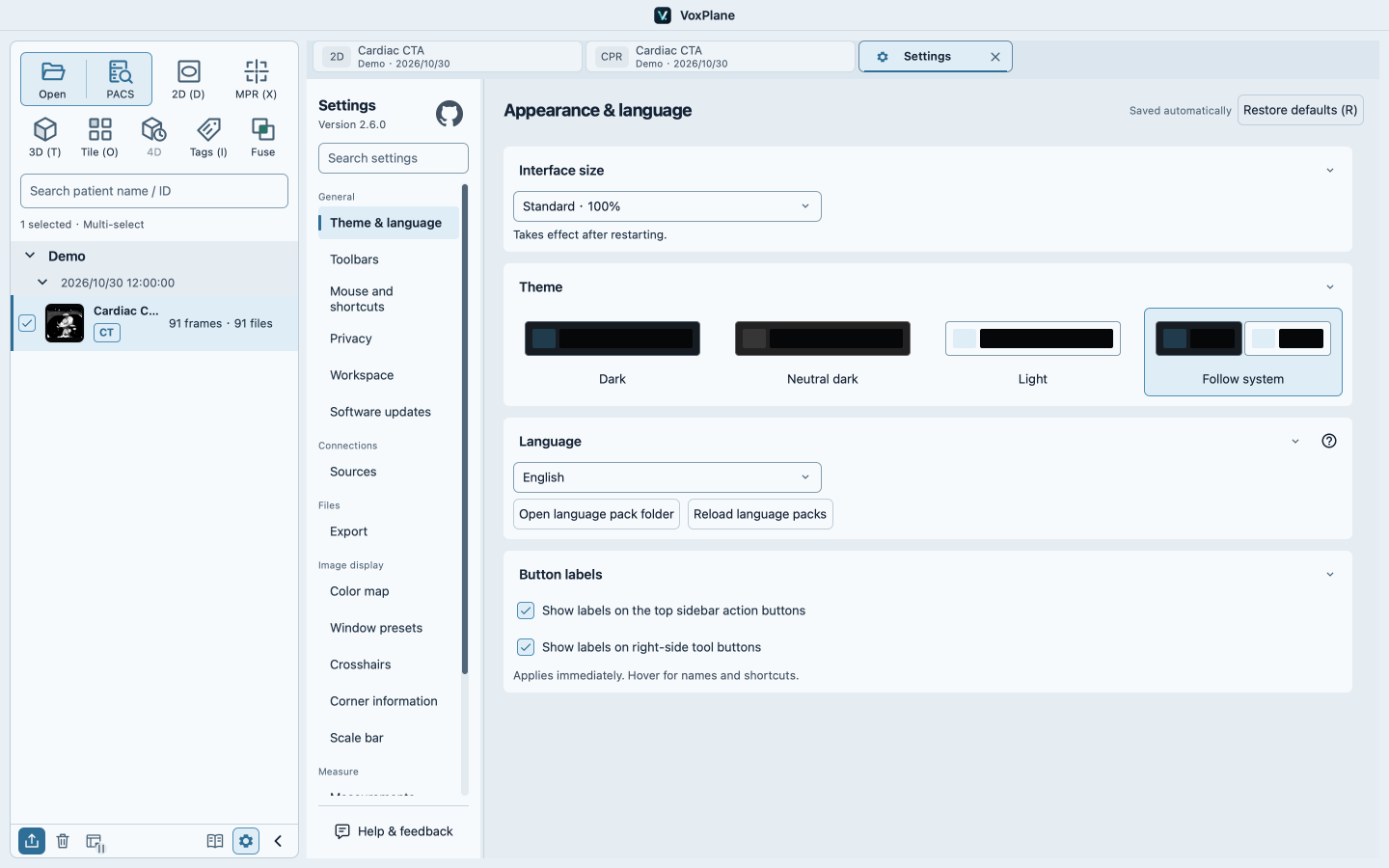
Under Settings → Appearance & language, choose Dark, Neutral dark, Light, or Follow system. The change applies immediately without restarting. Dark uses blue-gray panels, Neutral dark uses graphite-gray panels, and Light uses bright panels. Choose Follow system to switch between the light and dark themes with your operating system.
Switching themes preserves open tabs, viewing position, and measurements. It does not adjust image windowing, color maps, or measurement colors. Theme and language preferences persist after restart; new installations default to dark and Chinese. Select Simplified Chinese or English on the same page to switch the interface and manual language together.
The Button labels section below Language has two independent options: Show labels on the top sidebar action buttons and Show labels on right-side tool buttons. Both are on by default. The left option applies to image, PACS and view entries; the right option applies to the toolbar, collapsed toolbar and tool options. Enable an option to show short names; hover still shows full names and shortcuts. Changes apply immediately and persist after restarting.
Add and edit language packs
Open the language pack folder under Settings → Appearance & language. See Add a language pack below for the complete steps and Chinese/English demonstrations.
Software updates
Enable or disable startup checks in Settings → Software updates; checks are on by default. When a stable release is available, review its release notes and select Download and update. The app downloads and verifies the package, follows your workspace save preference, then exits, installs, and restarts. Cancelling suppresses reminders for that version; the badge beside the version number lets you continue later. You can also Check for updates manually. Automatic installation supports macOS arm64 applications and Windows x64 installers and single-file portable builds. Source and folder-portable builds use the downloads page. Check failures are silent; failed installation restores the previous version.
The summary follows the selected Chinese or English interface language. Choose Full release notes to view all changes for that version. A replacement package with the same version number does not trigger an upgrade notification; download and install it manually from the release page.
Help & feedback
Open Help & feedback at the bottom of Settings navigation or the manual contents. Enter a title and description, review the optional system information, then choose Open GitHub or Email. GitHub opens a prefilled issue; email opens a draft addressed to 5769389@qq.com. Review and submit it yourself. Long feedback is copied in full for pasting into the draft; you can also copy feedback or the address directly. System information excludes patient data, images, file paths and logs. Add screenshots manually and hide patient details first. Use Add attachments for images, DICOM, PDF, ZIP or other regular files (up to 32 files, 25 MiB total). Check patient information and confirm sharing, then Email requests a system composer with attachments for you to review and send. macOS uses its email sharing service; Windows requires a MAPI-compatible mail client. Otherwise, Save email file (.eml) and edit or forward it in your mail client. Mail providers may impose lower size limits, and attachment encoding increases message size. Attachments are not automatically anonymized or uploaded to GitHub. You can also leave the fields empty and choose Open GitHub to write your feedback on the website.
Mouse and shortcuts
In Settings → Mouse and shortcuts, configure wheel slice direction, right- and middle-button dragging, and windowing/zoom sensitivity. Defaults: W window/level, S scroll, P pan, Z zoom, M measure, Space play/pause. In the open segmentation panel, B selects paint and E selects erase. Only tools available in the current view respond.
With a submenu open, J / K step to the previous or next slice in Scroll, or sample in CPR. In Measure, press L for length, A for angle, R for rectangle, E for ellipse, V for curve and F for freehand ROI. Press R on the active tool to restore its state, such as pan, color map or fusion opacity. In Settings, R activates the Restore defaults button marked with the key. Change this shared binding here. Use the Clear buttons to remove measurements, annotations, crops or analysis results. Switching or closing the menu releases its keys. The button shows its name and shortcut on one line when they fit. Hover for the full hint if the sidebar is collapsed or the key combination is too long.
Click a binding and press a new key combination. Duplicates within a menu and reserved keys leave the original binding unchanged. Esc or clicking elsewhere cancels recording; × clears a binding. Changes save immediately and update toolbar hints. Standard file and editing shortcuts are listed separately. Tool keys do not run while typing, inside popups, during mouse dragging, or while the application is inactive. VoxPlane does not register global hotkeys. If the system, an input method, or another app intercepts a combination, choose a different key.
Press C to open color maps. In the window preset or color map list, 1–9 selects the corresponding entry in the current order. In Scroll, H / L goes to the first or last slice. In Zoom, press 1–9 for the matching magnification or 0 for 10×. Press G to open Layout, then 1–9 to choose one of the first nine options in panel order.
While a popup is open, keyboard shortcuts act on the topmost popup. Press Enter for its default action, or move to another button with Tab and press Enter. In a multiline editor, Enter inserts a new line. Esc dismisses the popup or requests cancellation of an active task.
Press A to open Annotation and E to open the Export panel. Within Annotation, A selects Arrow and T selects Text; these menu keys are released when leaving the menu. Typing annotation text keeps normal keyboard input. Q performs the current view’s full reset, matching its reset button, including clearing that view’s measurements, annotations and analysis results. R still resets only the tool represented by the current menu. Full reset does not affect other tabs. These general actions are inactive during playback, pointer dragging or other popups. Bindings can be changed or cleared in Settings. An active secondary menu has priority over overlapping keys: A and E still select Angle and Ellipse in Measurement. The export shortcut only opens its panel; choose format, scope and save there.
Interface size
Choose 100%, 115%, or 130% in Settings → Theme & language → Interface size. Restart to scale text, icons, and controls together. This combines with system display scaling and does not change image data or measurement units.
Privacy
In Settings → Privacy, choose whether new views hide identity. Existing workspaces restore their saved display state. Hidden identity covers viewport and montage identity details, plus the associated tab’s patient, study date, description and tooltip. If any viewport in a tab hides identity, that tab’s details are hidden too. This does not hide the patient sidebar, modify DICOM, or remove text burned into pixels. Export anonymization is configured separately.
Clear recent workspace history removes history entries only. Workspace files, images, and currently open content remain available.
Arrange toolbar buttons
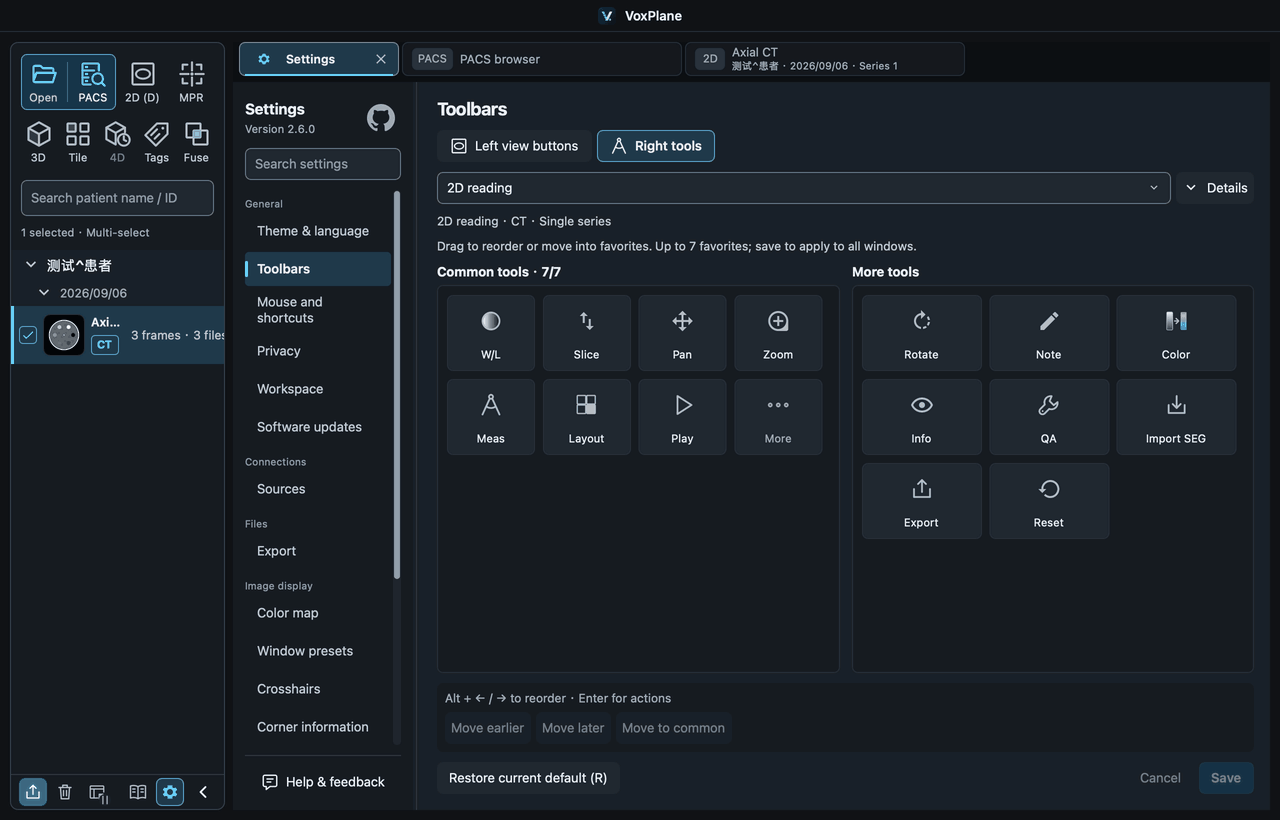
In Settings → Toolbars, choose left view buttons or right tools. Drag an icon button and release at the insertion marker to place it. Right tools can also move between Common and More, with up to 7 common tools.
You can also select a button and use Move earlier / Move later or the group action, or press Alt + ← / → to reorder. Press Esc to cancel a drag.
The editing area shows the arrangement directly. Save applies it to all windows and keeps it after restarting; Cancel discards the draft. Restore current default only changes the current draft until saved. Import and bottom system actions stay fixed. Toolbar labels still use the separate switches in Appearance and language.
Right-side tools are grouped into 2D reading, MPR reconstruction, 3D, Montage, 4D and Fusion. The editor initially selects the most recent image configuration in this window. Expand Details to choose single-series or comparison mode and the image type. The exact configuration is always shown; Save affects only configurations you edited. PET/CT volume tools are under 3D.
Switching settings categories preserves unsaved drafts, so you can return to Toolbars and continue editing. Click Save to apply changes or Cancel to discard the draft. Save before closing the Settings tab; unsaved drafts are discarded when it closes.