
Viewport overlays
Configure corner information, crosshairs and scale bars.
On this page
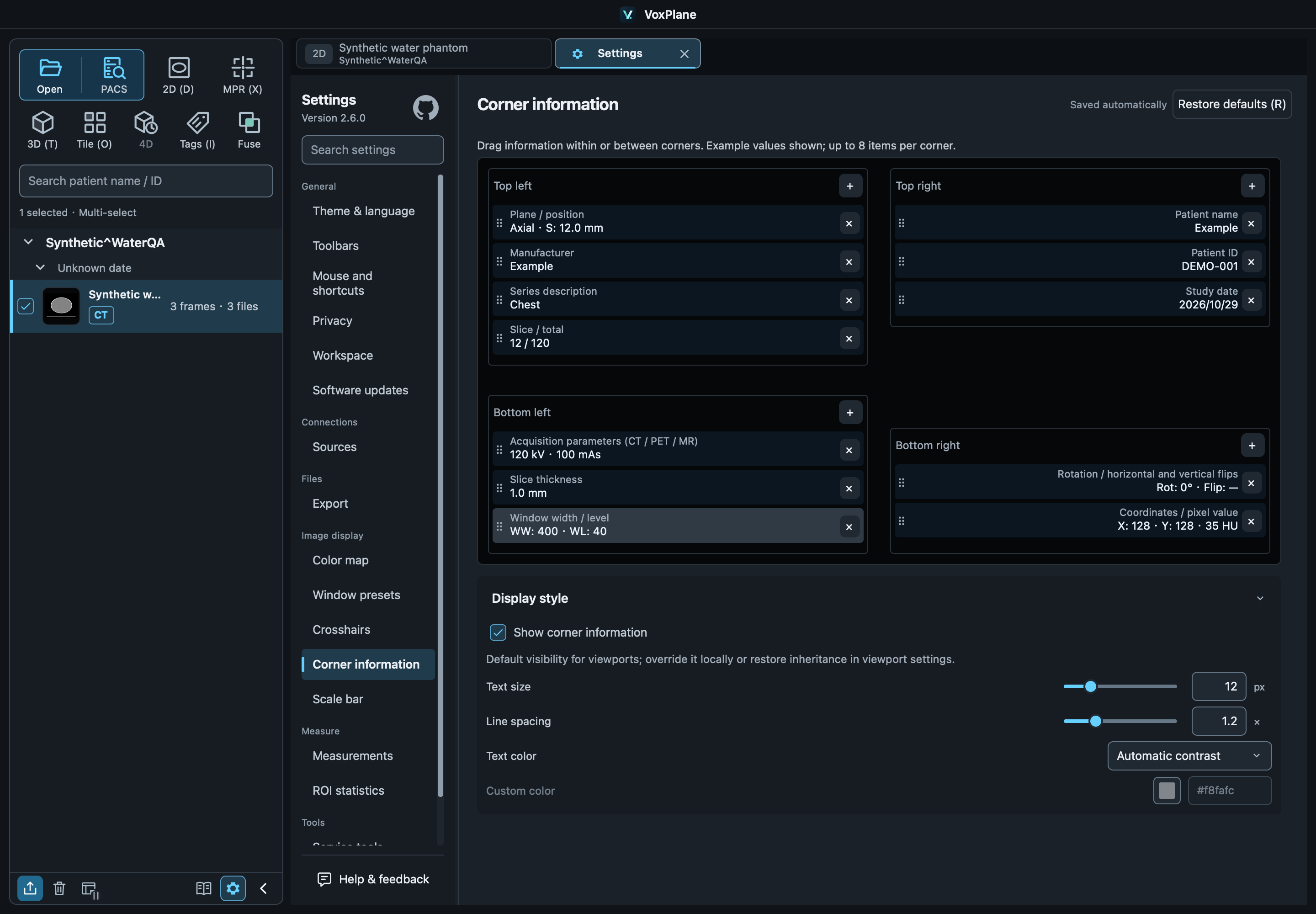
Select and order
In Settings → Corner information, all four corners show field names and example values. Drag within a corner to reorder, or between corners to move a field. The insertion line marks its destination. Release to save automatically; press Esc to cancel. Click + in a corner to search and add a field, or × on a row to remove it. Each corner holds up to 8 fields; duplicate fields and full corners reject drops.
The editor uses example data. Field labels in the image viewport remain in English; patient names and series descriptions retain their original image content.
Text and display
Settings → Corner information → Show corner information sets the global default. New viewports follow it until you change visibility locally; other viewports remain unchanged. Choose Follow global corner settings in Viewport settings to restore inheritance. The plane selector at the upper left of a 2D view is part of this overlay.
Adjust font size, spacing, and color. Text shrinks and elides in small viewports. Fusion offers compact and detailed modes.
View differences
Tiles shows slice numbers only; 3D shows no corner text. Missing metadata is not invented. These preferences affect display only.
Crosshair style
In Settings → Crosshairs, set AX/COR/SAG colors and widths. AX color appears in COR and SAG, for example. Slab boundaries follow the plane color. Styling does not move or rotate planes.
PET fusion locator
In fusion Viewport settings, choose Small cross / Reference lines for all four cells. Locator hits take priority for positioning. Switch to the corresponding region tool before editing regions.
Scale bar size and fitting
In Settings → Scale bar, choose a maximum of 1, 10, 20, 50 or 100 mm, default 100 mm. Toggle visibility or change its color. Zoom and window size select a suitable 1, 2, 5 × 10ⁿ mm length, limited by your setting, 25% of viewport width and 160 px. The scale hides without reliable spacing or enough space.