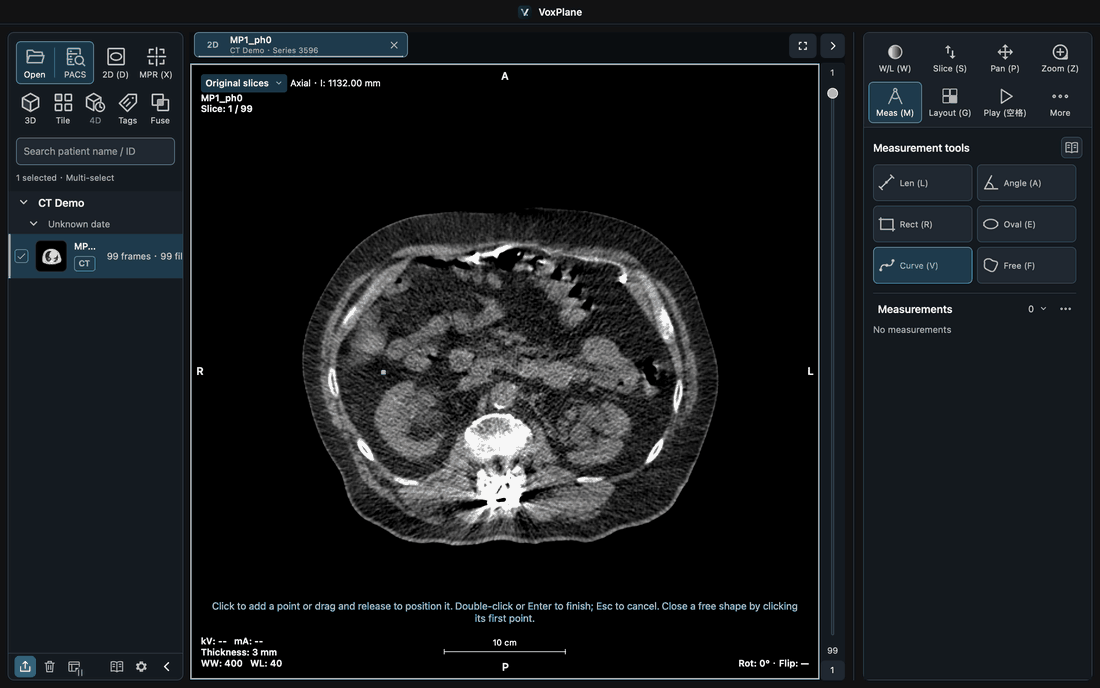
Drawing lengths, angles and ROIs
Activate a viewport, then choose a measurement tool.
On this page
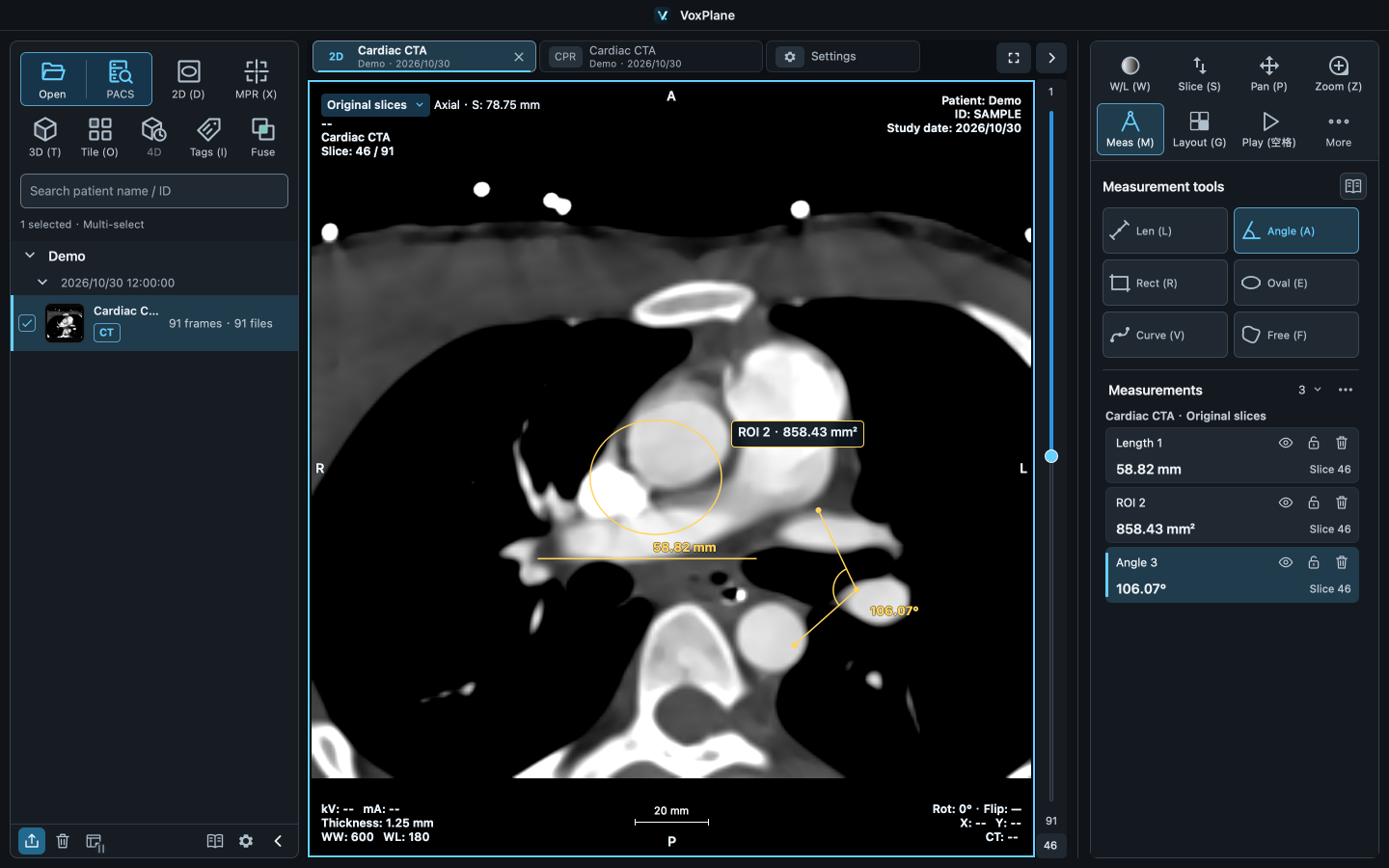
Length
Press to confirm start → end. The second valid press completes the length immediately. Moving previews the next point; releasing does not confirm it. Length uses physical pixel spacing. Drag completed endpoints to adjust. Without valid spacing, images remain viewable but length, angle and ROI measurements are unavailable; a display pixel grid is not millimeter calibration. The length label stays hidden for a single point or coincident endpoints; it appears once the preview forms a valid segment.
Angle
Press to confirm start → vertex → end. The second point is the vertex; the third valid press completes the angle immediately. Move to preview the next arm. Angles range from 0 to 180°. The angle value appears only after both arms are formed; a single point or a missing arm shows no value.
Rectangle and ellipse
Press to confirm two opposite corners of the bounding box. The second valid press completes the shape immediately; movement only previews it. Rectangles show width and height; ellipses show both axis diameters. Drag completed corner handles to resize, releasing to commit the edit. The metric card stays hidden for a single point or zero width or height; a valid region shows live statistics.
Draw another
Completed objects remain selected and do not change when the mouse moves. Press in empty space to start another object; Esc cancels a draft. Length, angle, rectangle, ellipse and arrows finish when their required valid points are placed. They do not wait for or cancel on double-click. Curves, freehand ROIs and CPR paths use double-click to finish; once these multipoint tools finish, double-click can maximize or restore the viewport.
Click Measurement results to collapse or expand the list. More beside the heading clears measurements from the current viewport, preserving other viewports.
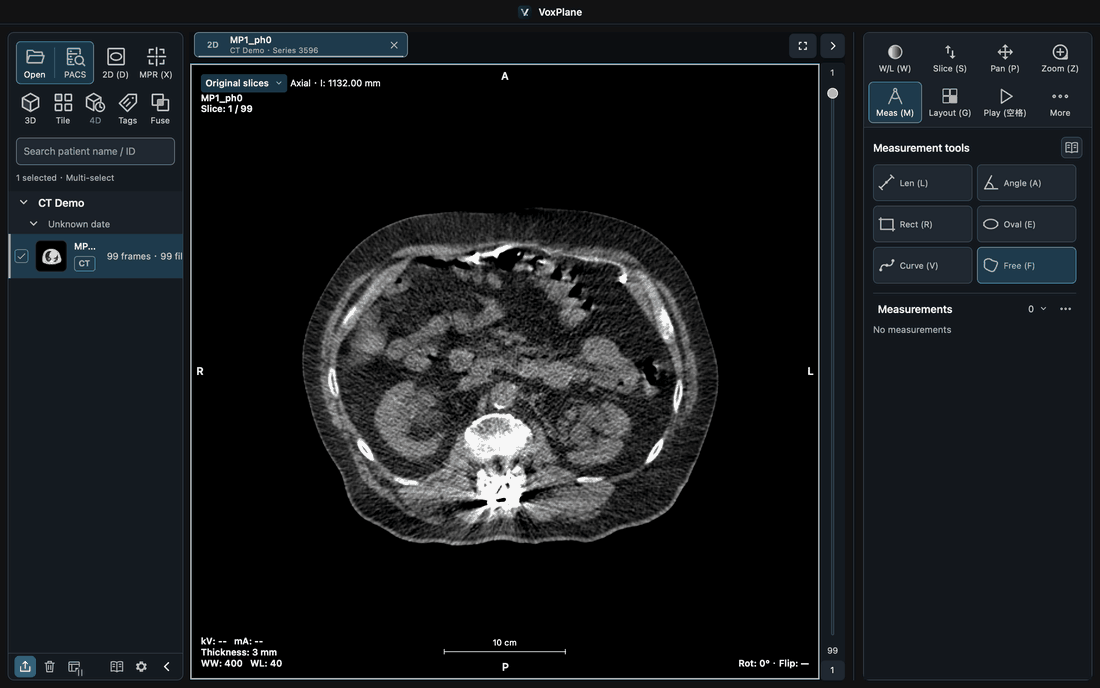
Freehand ROI
Select Freehand ROI and click to place control points. A smooth closed curve passes through them. Pointer movement only previews the boundary. Click the first point, double-click or press Enter to finish. While drawing, a double-click finishes without adding a point and cancels drafts with fewer than three points; Esc cancels. Drag controls to reshape or the interior to move. Area, perimeter, pixel statistics and segmentation conversion use the smooth boundary. At least three points are required. Clicks or drags that would cross the contour leave the last valid shape unchanged. Existing polygon ROIs retain their original outlines. Once finished, double-click the viewport in a split layout to enlarge it. Double-click again to restore the layout.
Convert freehand ROI to segmentation
Select a completed freehand ROI in MPR / 4D and choose Convert to segmentation on its result card. Conversion feedback appears below the list. Native voxel centers create one layer nearest the current plane, retaining the measurement without extending across slices. Oblique and projected contours are unsupported. Later contour edits do not update the mask, which can be saved and exported as SEG.
Curve
Select Curve and click to place at least three control points. Double-click to finish without adding a point (fewer than three cancels the draft), or press Enter to finish; Esc cancels. The open smooth curve passes through its controls and reports physical arc length. Drag controls to edit. Clicks or drags that would cross or retrace the path leave the last valid curve unchanged. Copy, undo, workspace saving and measurement reports are supported. Once finished, double-click the viewport in a split layout to enlarge it. Double-click again to restore the layout.